
How to Make a Quiz
Build a working quiz on this page in about five minutes. Describe a topic and let AI draft it, or write the questions yourself, then share it with a link.
AI drafts your questions in seconds. Or drop in a PDF, Word doc or slide deck.
Add a topic to continue.
Generating your first draft
Questions stream in one by one. The editor is warming up underneath.
Warming up the model...
Draft ready
Opening the editor with your questions...
Most guides send you somewhere else to start. Here you build on the page: describe your quiz above and AI drafts it, or open the blank editor and write the questions yourself. Either way, you can finish writing questions and marking answers before anyone asks for an email address.
How it works
Making a quiz takes three steps
The builder above is the same one described below, so you can follow along in it as you read.
-
Write your questions
Describe your topic and let AI draft them, or type them yourself. Five to fifteen questions suits most audiences. Keep the answer options similar in length, because the odd one out reads as the correct one.
-
Mark the correct answers
Click the right option on each question. That one click is the whole answer key, and every response is then graded automatically. Set a pass mark here if the result triggers a certificate.
-
Publish and share
Preview it once as a taker, then publish. You get a link to send, or an embed you can drop into your own page, and the responses start arriving as people finish.
Each step is broken down below, with a screenshot of the real editor and the result you should expect to see.
What kind of quiz are you making?
The steps are the same for every quiz, but the scoring and the results screen differ. Pick the one that matches your goal so you set it up once and not twice.
On this page
The five steps below build one real quiz from scratch: a five question Workplace Safety Refresher that auto grades itself and shows each person their score. Every screenshot is the live editor, and you can take the finished quiz further down the page.
-
Name your quiz and pick a type
Start a new quiz and give it a name the audience will recognise when it arrives in their inbox. "Workplace Safety Refresher, March" tells someone what it is and when it is from. "Quiz 1" does not.
Then choose the quiz type. This one setting decides the rest of your build: a scored quiz gives you an answer key and a total, while a personality quiz swaps the answer key for outcomes. You can change the individual settings afterwards, so pick the closest match and move on.
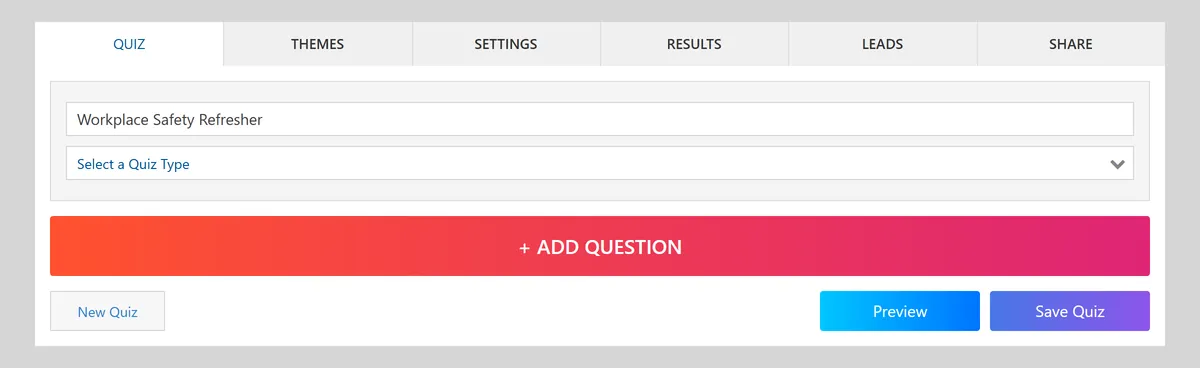
Naming a new quiz before adding any questions. 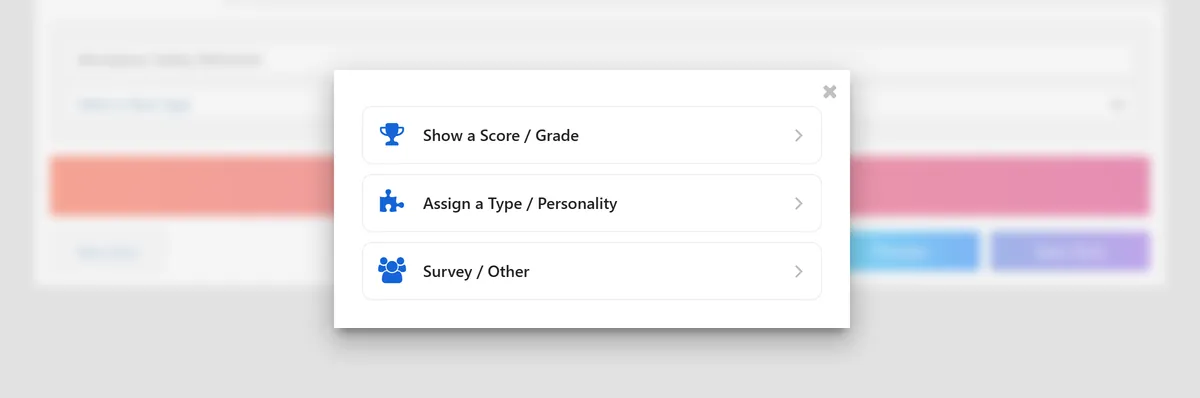
The quiz type list. Choosing here applies sensible defaults for scoring and results. You should now have an empty quiz with a name and a type, ready for its first question.
-
Add your questions
Add your first question and choose a question type. Multiple choice is the right default for most knowledge checks. True or false is quick but carries a fifty percent guess rate, so use it sparingly. Short answer tests real recall, but expect to mark some responses by hand unless you list every accepted spelling.
Write the question as a complete sentence and include only what someone needs to answer it. Keep your answer options similar in length and style, because an option that is noticeably longer or more detailed than the others reads as the correct one even to someone who does not know the material.
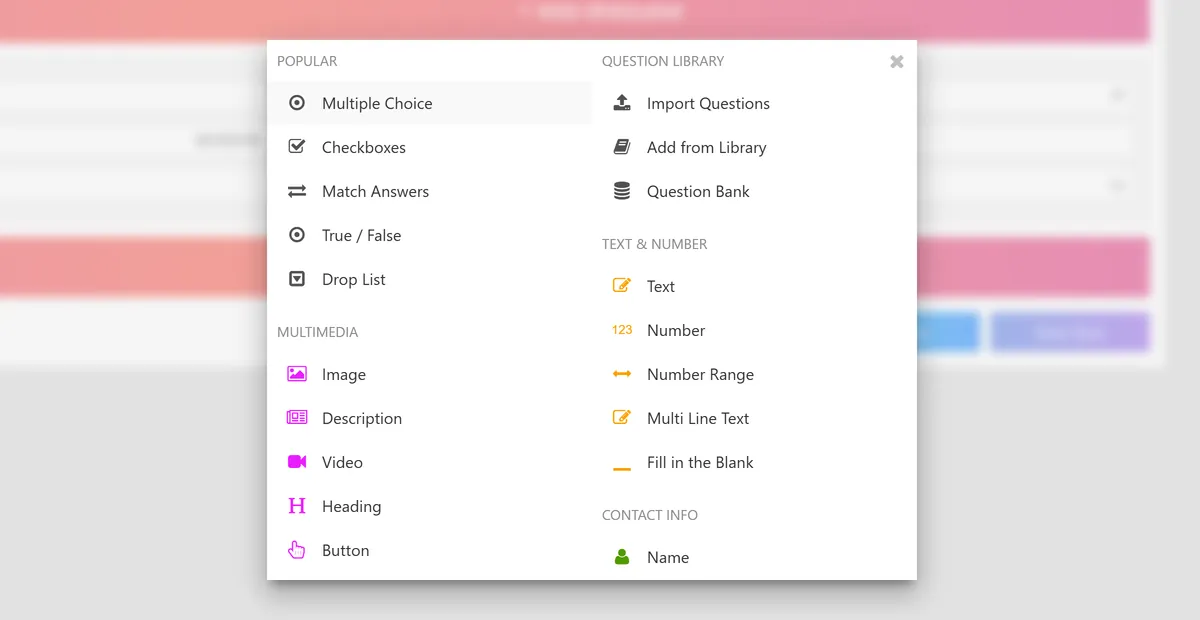
Adding a question and choosing its type. 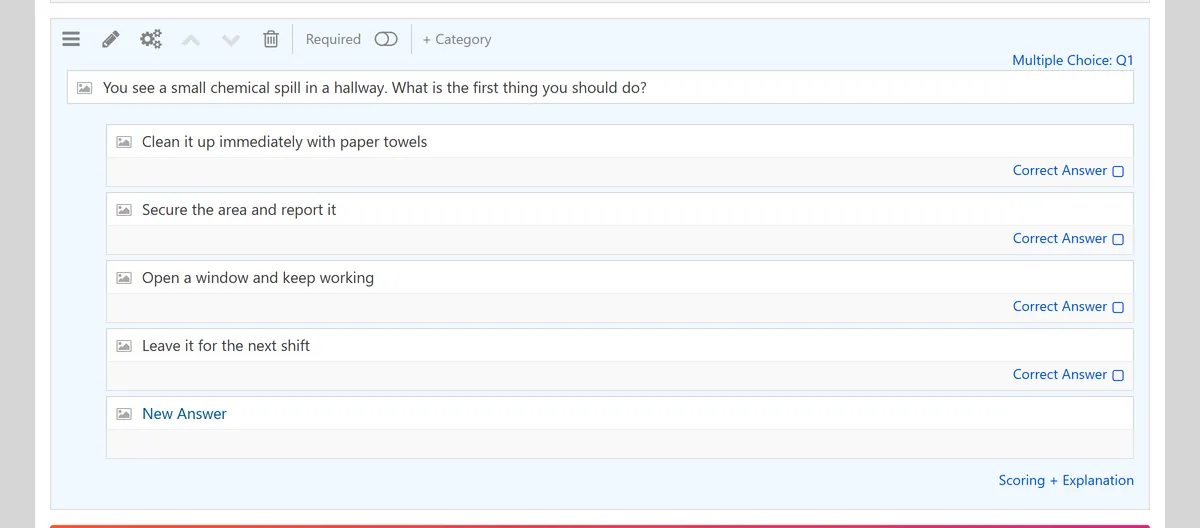
A finished question with four answer options of similar length. You should now see your question in the list, with its answer options, and an empty slot for the next one.
Which question type to use
Choosing a question type Type Best for Watch out for Multiple choice Most knowledge checks. Lets you use common misconceptions as the wrong options. Accidental clues, such as one option being longer or using absolutes like "always". True or false Quick checks and clear policy statements. A fifty percent guess rate, and wording that is arguable either way. Short answer Real recall, with no options to jog the memory. Spelling variants and manual marking. Matching Terms and definitions, or sorting things into groups. Too many pairs turns it into a reading test. Scenario question Judgement and decisions, which is what most workplace tests actually need. Long set ups packed with detail that does not matter. -
Mark the correct answers and set the points
This is the step that turns a list of questions into an assessment, and it is one click per question: select the correct option and it becomes the answer key. Every response is then graded automatically, without you writing a single rule.
This is not universal. In some form builders, scoring means writing a logic rule for every answer, one at a time, then a second set of rules to decide what each total means. If you have ever abandoned a quiz halfway through building it, that is usually why.
Leave every question worth the same points unless you have a reason not to. If some questions genuinely matter more, such as the safety critical ones or the items tied to a certification requirement, weight those higher and keep the rest even.
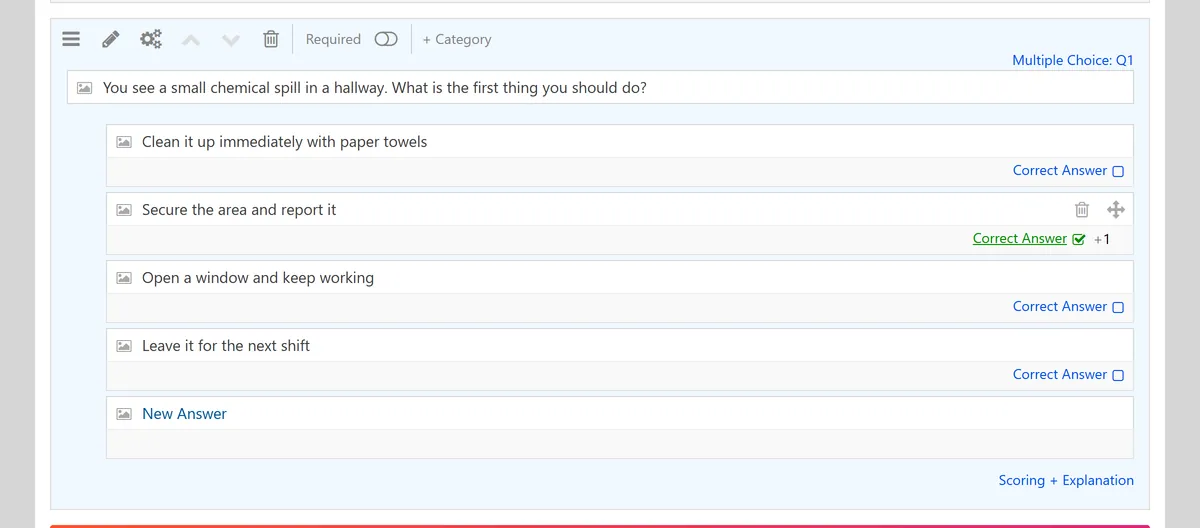
Marking the correct answer. One click sets the answer key for that question. You should now see a correct answer marked on every question, and a points value against each one.
-
Decide what people see at the end
A quiz that just says "7 out of 10" teaches nobody anything. Before you publish, decide what the last screen does.
If the quiz is for learning, show the score and the correct answers, with a sentence explaining why each one is right. That explanation is where the learning actually happens, and it costs you a few minutes to write.
If the quiz is a real assessment, or you plan to reuse it, hold the answers back. Show the score, and keep the answer key private so the quiz survives being shared around.
If a result triggers something, such as a certificate or a follow up, set the pass mark now and keep it in proportion to the difficulty and the consequences of failing.
If you are collecting email addresses, the ask interacts with length. In our benchmark, short quizzes of five to twelve questions completed 86.9 percent of the time without an email ask and 76.8 percent with one; at thirteen questions or more the effect reversed, 67.6 against 72.1. The interruption hurts a short quiz, while a long one has already earned the commitment. If capturing leads is the whole point, using a quiz to capture leads is a different build with its own trade offs.
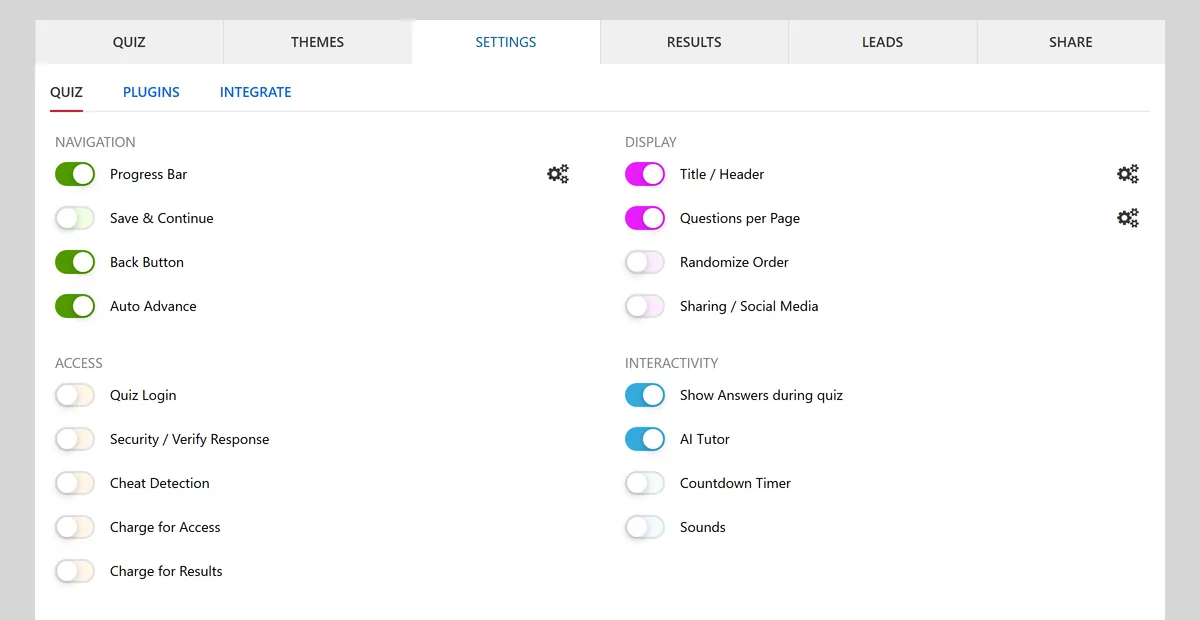
Results and feedback settings, where you choose what the final screen shows. Do this before you publishAdd up the total points, check the pass mark against it, then take the quiz twice yourself: once answering everything correctly, and once getting a few wrong on purpose. It takes two minutes and it catches almost every scoring mistake before your audience does.
You should now know exactly what a person sees the moment they finish.
-
Preview it, then publish and share
Preview the quiz as a taker rather than as its author. You are checking three things: that the questions read clearly when you are not the person who wrote them, that nothing is cut off on a phone, and that the result screen says what you expected in step four.
Then publish. You get a link you can paste into an email, a chat or a class group, and you can embed the quiz directly in a page so people never have to leave your site.
Where the free account comes inWorth knowing up front, because most guides are vague about it. Building and saving a quiz here needs no account at all, answer key included. Creating a free account is what unlocks the shareable link and the response reporting. So you can do the whole job and see exactly what you have made before deciding whether to sign up.
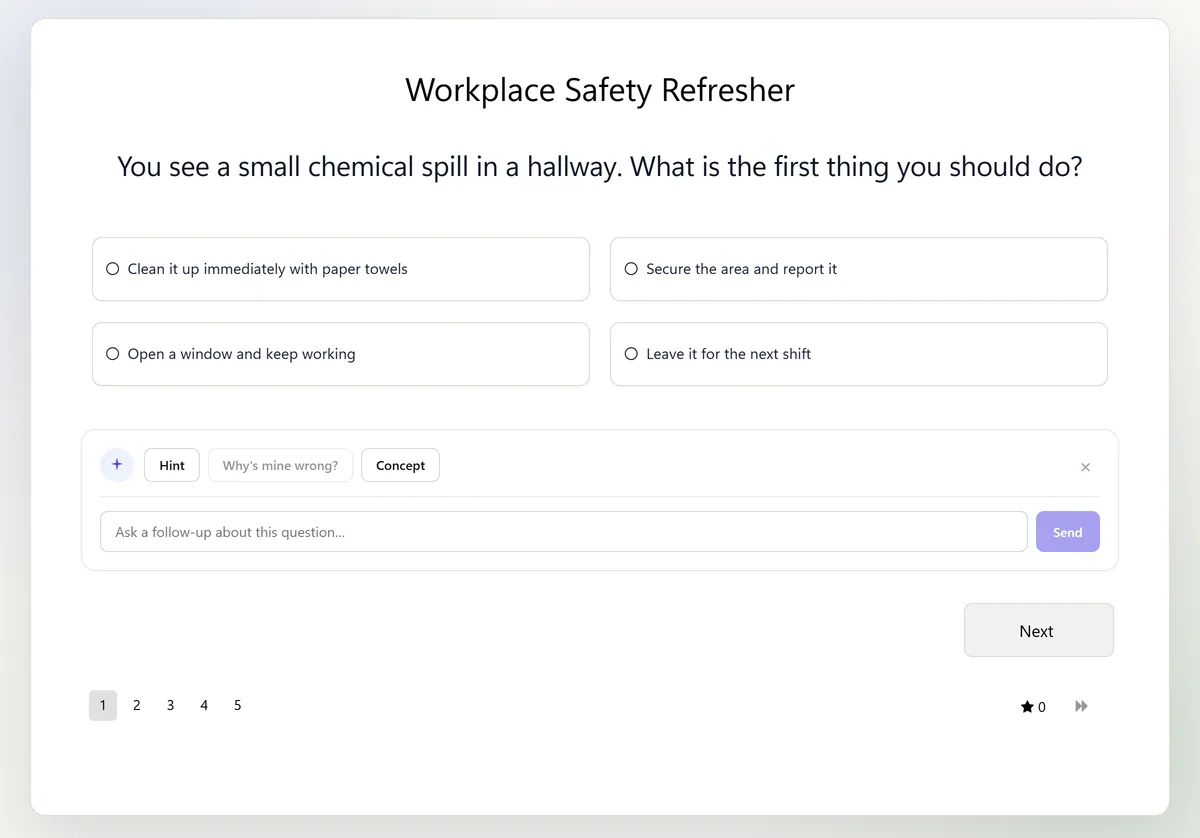
The quiz in preview, exactly as someone taking it will see it. 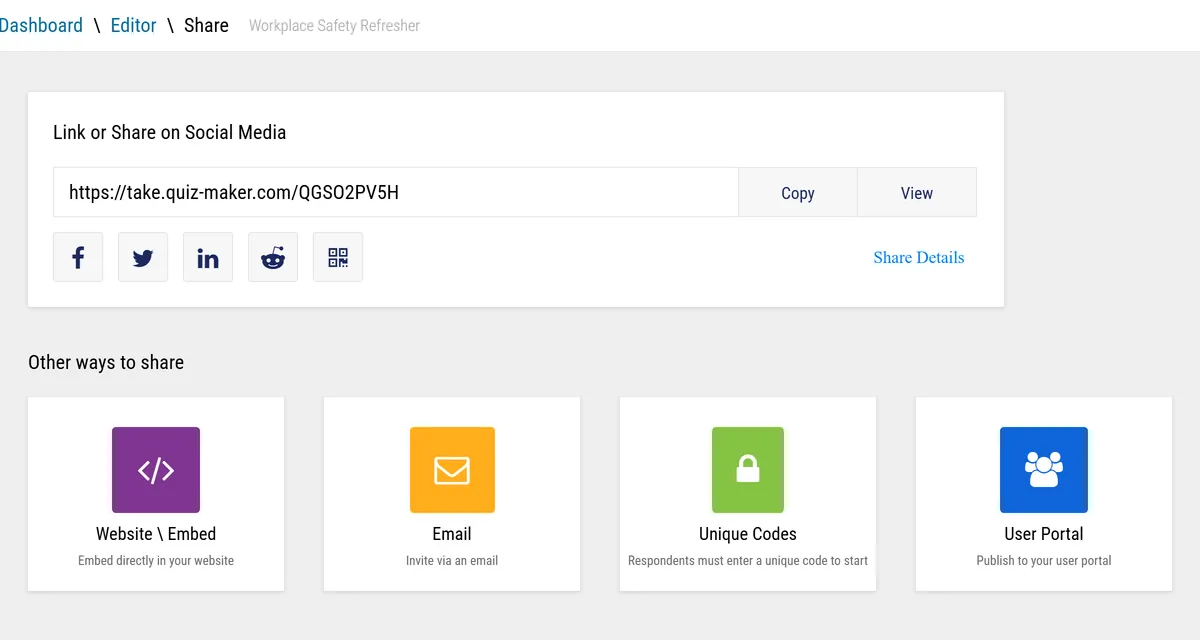
Publishing gives you a shareable link and an embed option. You now have a live quiz on a URL, and responses will appear as people complete it.
After you send it: reading the results
Publishing is not the end of the job. A quiz beats a slide deck because it tells you what people did not know, and that only shows up once answers arrive.
Two numbers matter. The score distribution tells you whether the quiz was pitched right: everyone scoring full marks means it was too easy to be informative, and everyone failing usually means unclear rather than hard. The per question breakdown is the valuable one. A question most people get wrong is either a real gap in what they know, which tells you what to teach next, or a badly worded question, which tells you what to fix.
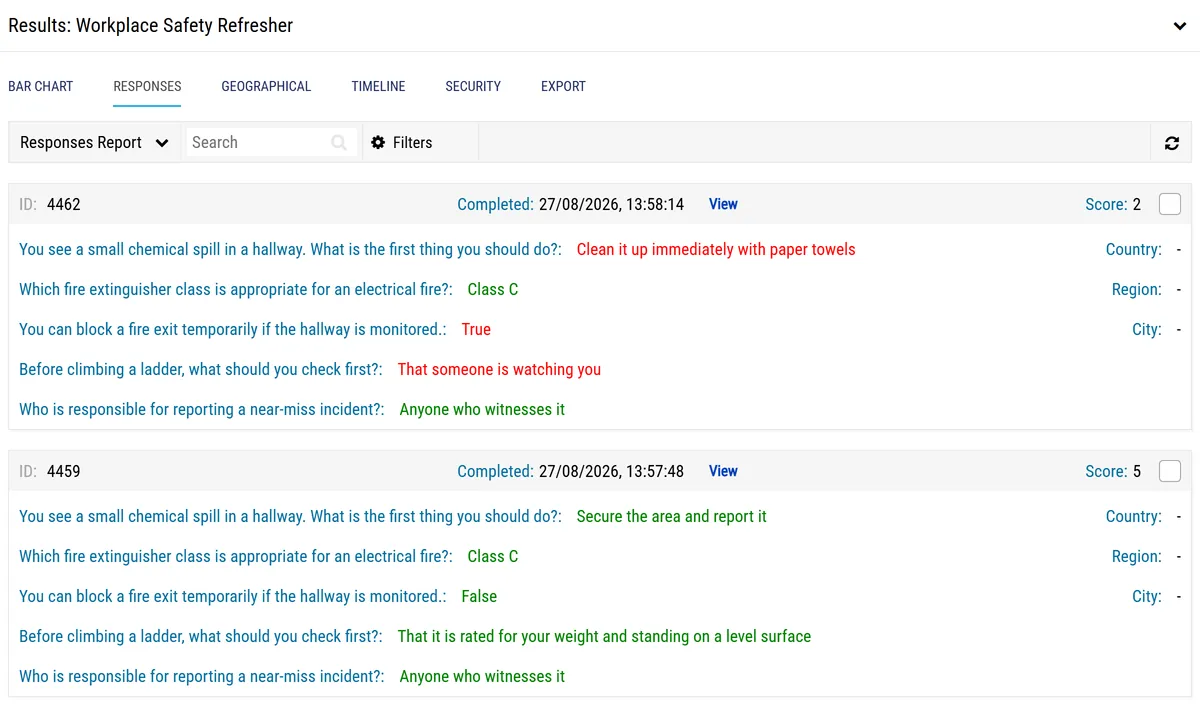
You should now be able to see who has answered, how they scored, and which questions caused the most trouble.
Reporting is where a quiz stops being a one off. If you want to go further than this page covers, there are more step by step guides for the rest of the product.
The finished quiz
Here is that same five question quiz, built with the steps above and published. Take it and watch what happens at the end: that result screen is the one configured back in step four, showing the score, the correct answers and a line of explanation for each.
Trouble loading it here? Open the Workplace Safety Refresher in a new tab.
If you would rather see what other people have built before you start, there is a gallery of finished quiz examples covering scored tests, personality quizzes and lead capture.
Writing questions that work
Almost every weak quiz fails on question quality rather than on the tool. Four habits fix most of it.
- Ask one thing at a time. If a question contains "and", check whether someone could get half of it right. Split it if they could.
- Make the wrong options genuinely tempting. The best wrong answers are the mistakes people actually make. Obviously silly options turn a four option question into a two option one.
- Test decisions, not vocabulary. "You see a small chemical spill in a hallway. What do you do first?" tells you more about someone's judgement than asking them to define a term.
- Cut the trick questions. Double negatives, buried "except" clauses and deliberately similar options measure reading speed, not knowledge. If you must use a negative, put it in capitals so nobody misses it.
Five to fifteen questions suits most audiences. Use fewer when you want people to finish for fun, and more when you genuinely need to cover a syllabus.
What we measured about length
We rebuilt 700,257 quiz sessions question by question across 7,669 published quizzes to find where people actually stop. Two findings are worth knowing before you write anything.
Length then costs you steadily, and it costs time far faster than it costs completion:
| Quiz length | Time to finish | Completion |
|---|---|---|
| 1 to 4 questions | 1m 01s | 88.3% |
| 5 to 7 questions | 1m 49s | 81.6% |
| 8 to 10 questions | 2m 20s | 76.9% |
| 20 or more questions | 7m 06s | 69.5% |
Quiz Maker benchmark, 2,800 quizzes with 100 or more sessions each. Measured on outcome quizzes rather than graded ones, so treat it as a guide to attention rather than to marking. Full method and the complete question by question curve are in our quiz completion benchmark.
Going from seven questions to twenty costs you about twelve points of completion and nearly four times the time on task. If you need the coverage, take it. If you are adding questions because they are interesting, that is what the drop is paying for.
Common mistakes to avoid
Seven cause most of the rework, roughly in the order they tend to happen.
- No clear purpose. Questions get added because they are interesting rather than because they measure the thing you care about. If a question does not serve the point of the quiz, cut it.
- Opening with a welcome screen. In our benchmark, quizzes that open straight into a question reached the end 82.0 percent of the time, against 62.0 percent for quizzes that opened with a branded welcome panel. The gap holds when only quizzes of the same length are compared, so it is the extra screen doing the damage, not quiz length. Let people start answering immediately.
- Two defensible answers. The most common complaint from quiz takers, and it is almost always the wording rather than the marking. Unless it is a multi select question and you have said so, exactly one option should survive an argument.
- The hard questions all at the start. People abandon quizzes in the first thirty seconds. Open with one or two you expect most people to get, then ramp.
- Never opening it on a phone. 69.6 percent of the sessions in our benchmark ran on a phone, where people finish about 30 seconds quicker and complete 1.7 points lower. Long answer options and wide images that look fine on a laptop are the usual casualties, so preview it on a phone before you send it.
- Scoring that does not add up. Total points, pass mark and any weighting drift apart as you edit. Check them together, at the end, once.
- A dead end result screen. A bare number teaches nobody anything. Say what the score means and what to do next.
Take your own quiz twice before you share it: once answering everything correctly, and once getting a few wrong on purpose. You are checking that the score adds up, that the pass mark behaves, and that the result screen says something useful in both cases. This catches almost every mistake on this list.
Frequent, low stakes quizzing improves recall because it forces retrieval, which is the act of bringing knowledge back to mind rather than rereading it. If you are quizzing to help people learn, run them often and keep the stakes low. A quiz used as a monthly trap does the opposite.
Using AI to draft the questions
AI writes a usable first draft in seconds and it will not be your final draft. Treat it as a fast writer that needs an editor.
- Give it a tight brief. Audience, topic boundaries, number of questions, difficulty mix, and the specific skills to test. Ask for a one line reason for each correct answer so you can check the reasoning.
- Verify every correct answer against your own source material. This is the step people skip and it is the one that matters.
- Rewrite the wrong options. AI tends to produce implausible ones. Replace them with the mistakes a half trained person would actually make.
- Read it once for fairness. Remove stereotypes and culture specific references that are not part of the skill being tested.
- Watch the results. A question everybody misses is usually unclear rather than hard. A question everybody gets right is usually giving the answer away.
The box at the top of this page is the fastest way to start. For longer source material, and for building from a syllabus or a document library, there is a dedicated AI quiz generator.
Common questions
Can I make a quiz for free?
Yes. Building a quiz costs nothing and needs no account, answer key included. A free account unlocks the shareable link and the response reporting. Free quizzes then carry advertising and collect up to 25 responses each, which is enough for a class, a team or a group of friends. Beyond that you need a paid plan, mostly because a popular quiz stops collecting answers the moment it hits the cap.
Do people need an account to take my quiz?
No. Anyone with the link can take the quiz. Asking for a name or an email is optional and something you switch on yourself, usually when you need to know who scored what or you are collecting leads.
Can a quiz grade itself?
Yes, for any question type with a fixed correct answer, which covers multiple choice, true or false and matching. You mark the right option once and every response is scored against it automatically. Short answer and long text questions can be auto graded against accepted answers, but they are the two types most likely to need a human eye.
How long should a quiz be?
Five to fifteen questions works for most audiences. Fewer for engagement, more when you need to cover a syllabus. If the quiz is timed, test it on a phone and aim to keep the average finishing time under about eight minutes unless people are expecting a full assessment.
Should I show the correct answers straight away or at the end?
Immediately when the quiz is for learning, because the explanation lands while the question is still in mind. Hold them back when the quiz is an assessment, when you plan to reuse it, or when you want to limit answer sharing. A good middle ground for training is to show the score at once and the explanations after completion.
How many answer options should a multiple choice question have?
Three or four. More options only help if every one of them is plausible. A fifth option that nobody would ever pick adds reading time without adding any difficulty.
Can I add a time limit?
Yes, and use it deliberately. A timer adds pressure and discourages looking things up, but a tight limit penalises slower readers and people using assistive technology rather than measuring knowledge. If you set one, take the quiz yourself at a comfortable reading pace first and then add margin.
How do I stop people cheating?
Start with the design. Scenario questions are far harder to look up than definitions, shuffling the question order limits copying, and not reusing the same quiz for high stakes decisions removes most of the incentive. Beyond that you can restrict access, require identity fields and review results for unusual patterns. It is worth knowing that in some tools the correct answers are visible in the page source to anyone who looks, so if the stakes are real, check that whatever you use grades on the server rather than in the browser.
Can I embed a quiz on my own website?
Yes. Alongside the shareable link you get an embed option, so the quiz runs inside your own page and people never have to leave your site to take it. That usually lifts completion, because every extra click loses some of the audience.
Can I change a quiz after publishing it?
Yes, though take care once people have started. Changing correct answers, point values or outcomes affects fairness and makes your earlier results hard to compare. For anything high stakes, duplicate the quiz and publish a new version so each set of results stays comparable.
References
- Quiz Maker (2026). The Quiz Completion Benchmark: 7,669 published quizzes, 1.8 million completed responses and 700,257 sessions rebuilt question by question.
- Norman, M. (2016). Writing Quiz Questions. Center for Teaching and Learning, Risepoint.
- University of New Mexico Health Sciences Center. Rules for Multiple Choice Item Writing (Haladyna et al., 2002).
- Weimer, M. (2017). Do Quizzes Improve Student Learning? A Look at the Evidence. Faculty Focus.
Michael works on quiz and assessment design and on data quality. He writes practical guides that help teams build quizzes people can actually answer, and collect results worth reading. Every step on this page was built and tested in the editor above.
